How to Create Social Media Graphics Without a Designer
Social media is the modern storefront for New Zealand small businesses.
Whether you run a boutique retail shop in Ponsonby, a contracting business in Christchurch, or a cafe in Napier, a polished social media presence is how you stay top-of-mind with your local community.
But staying active on platforms like Instagram, Facebook, and LinkedIn creates a massive appetite for content.
To keep your feeds fresh, your business needs a steady stream of eye-catching graphics, announcement posts, and stories.
For a busy Kiwi business owner, this creates a frustrating dilemma. Hiring a professional design agency to pump out daily social media posts is incredibly expensive.
On the flip side, trying to learn complex, corporate-level editing software takes hours you simply do not have.
The good news? You do not need a design degree to create stunning, scroll-stopping social media graphics.
By applying a few simple layout rules and using the right local tools, you can create professional-grade social content entirely on your own.
Here is your step-by-step guide to mastering DIY social media design without the stress.
1. 3 Golden Rules for Scroll-Stopping Social Graphics
When someone is scrolling through their social media feed on a smartphone, you have less than two seconds to catch their eye.
If your graphic looks cluttered, confusing, or messy, they will skip right past it.
To design social graphics that actually stop the scroll, follow these three simple rules:
Rule 1: One Single Focus Point
Every single social post should have one clear job.
If you are announcing a weekend flash sale, the discount (e.g., "20% OFF EVERYTHING") should be the absolute biggest element on the canvas. Do not try to crowd the graphic with your opening hours, your full physical address, and a long list of terms and conditions. Keep those secondary details for the text caption underneath the post.
Rule 2: Embrace Text Readability
The vast majority of your customers will view your graphics on a small mobile screen, often while on the move or in bright sunlight.
- Never use tiny, thin, or overly curly fonts for your main text.
- Ensure your text stands out boldly against the background. If you are placing white text over a photo, add a slightly dark overlay or a solid shape behind the words so the lettering remains perfectly legible.
Rule 3: Keep Your Brand Consistent
It can be tempting to try a completely new style, color palette, and font combination every single time you post.
Resist this urge! If your followers don't instantly recognise your brand colours and fonts when your graphic pops up in their feed, you are losing out on valuable brand recognition. Stick strictly to your pre-defined brand style.
2. Setting Up Your Canvas: Pixels Matter
Different social media networks require completely different canvas shapes.
If you post a long vertical image to a platform that prefers a perfect square, your text or product images will get awkwardly cropped out.
Before you start designing, ensure you are setting up your digital canvas to the correct pixel (px) dimensions:
- Instagram & Facebook Feed Posts: 1080 x 1080 pixels (A clean 1:1 square that looks great on all phone screens).
- Instagram & Facebook Stories / Reels: 1080 x 1920 pixels (A tall 9:16 vertical layout built for full-screen mobile viewing).
- LinkedIn Update Graphics: 1200 x 628 pixels (A wide horizontal layout optimized for desktop and mobile business feeds).
3. How to Streamline Your Social Content with Dzyn Space
If the idea of manually setting up pixel dimensions and wrestling with blank canvases sounds overwhelming, Dzyn Space is built to make the entire process effortless for New Zealand businesses.
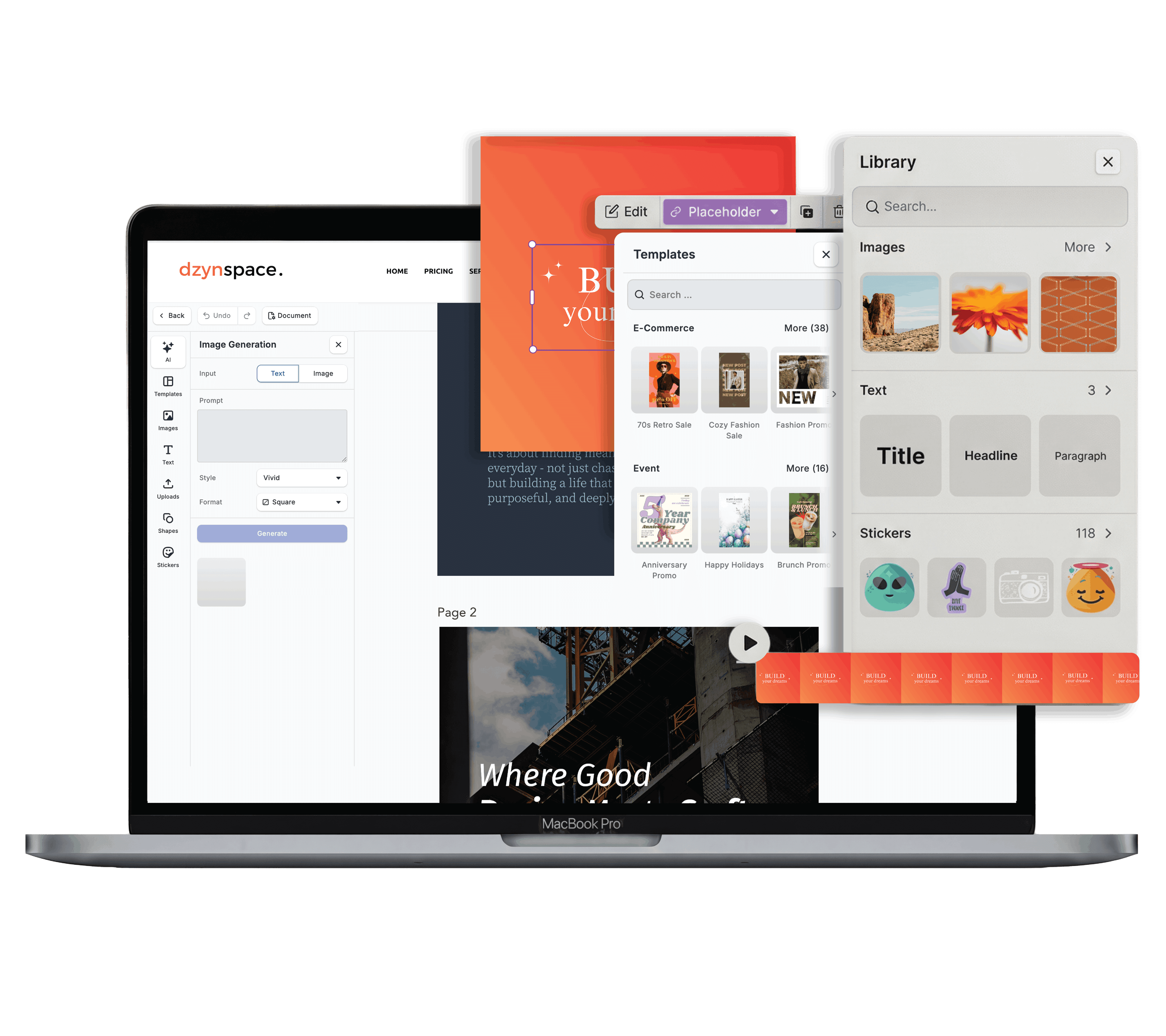
Instead of starting from scratch, you can jump straight into the Dzyn Space Design Editor. The platform features an extensive library of pre-sized, professionally designed social media templates tailored specifically for local businesses.
Dzyn Space completely removes the traditional headaches of DIY social design with a suite of built-in shortcuts:
- Localized Template Library: Access hundreds of stunning templates pre-optimized for squares, stories, and headers. Simply choose a style that fits your business, type in your text, and your graphic is ready.
- Instant Brand Kit Access: Thanks to Dzyn Space's Brand Centralisation feature, your company logo, designated fonts, and exact Hex colour codes are pinned directly to your editing sidebar. You can transform any generic template to match your unique brand identity with a single click.
- One-Click Background Remover: Want to cut out a clean photo of your physical product or a staff headshot to place on a vibrant background? Dzyn Space features a native background removal tool that isolates your subject cleanly in seconds—no tedious manual tracing required.
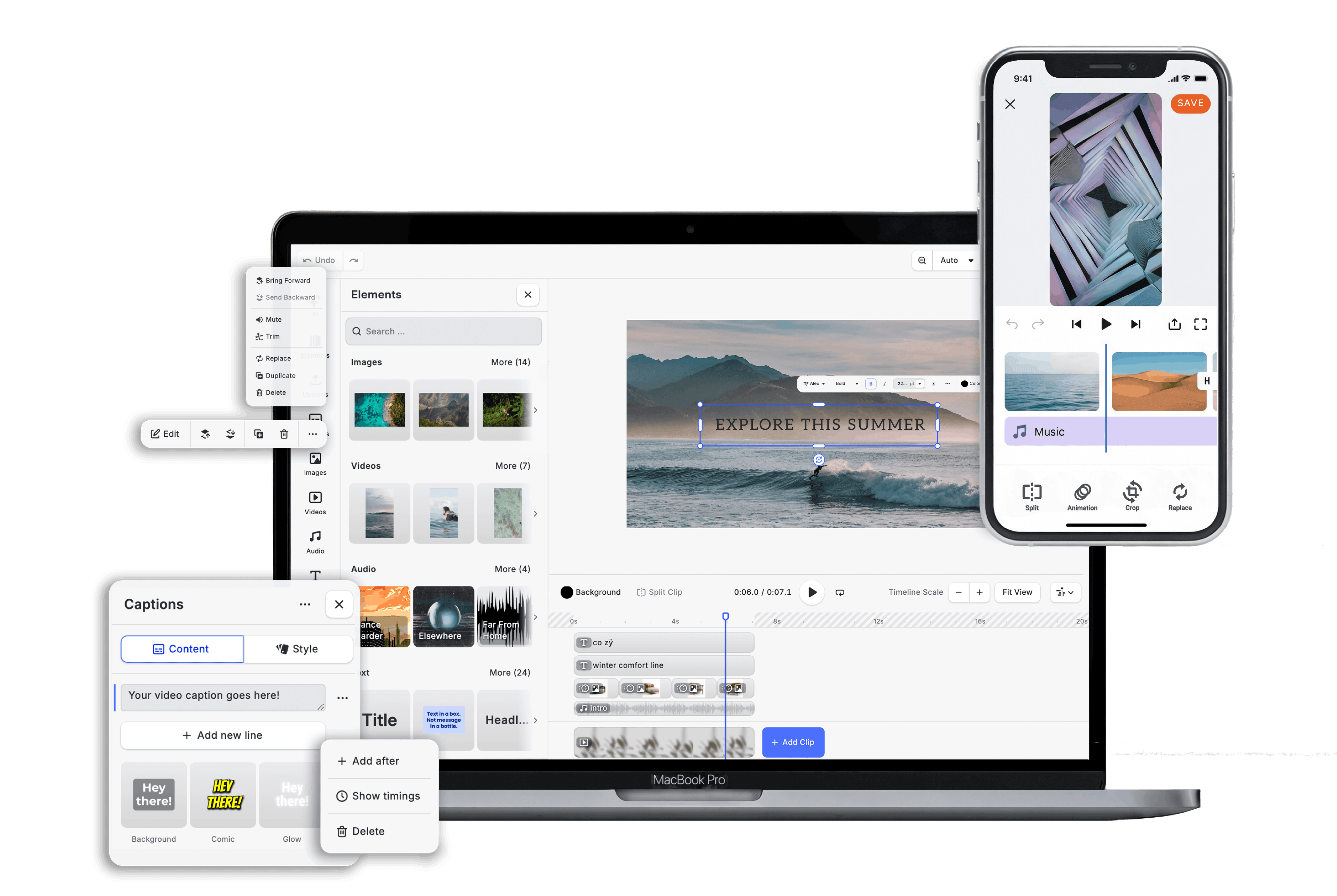
- All-In-One Creative Workspace: Instead of hopping between apps to edit photos, create graphics, and edit videos, Dzyn Space combines a graphic studio and a Video Editor under one dashboard. You can create static posts and moving social reels side-by-side using the exact same assets.
Frequently Asked Questions
Where can I learn the basics of good visual layouts?
If you want a deeper dive into the fundamental laws of graphic design—such as visual hierarchy, managing white space, and pairing the perfect fonts—be sure to read our cornerstone resource: The Complete Guide to DIY Graphic Design for Small Businesses.
Should I put my logo on every single social media graphic?
Yes, but keep it subtle.
Your logo should act as a clean signature, not the main event. Place a small, high-resolution transparent PNG version of your logo in one of the corners (usually the bottom right or top right) so it anchors the post without distracting from your main message.
How many colours should I use in a single social graphic?
To keep your feed looking clean and uncluttered, limit yourself to a maximum of two or three colours per graphic.
Lean heavily on your primary brand colours to build instant visual familiarity with your audience as they scroll.
Conclusion
You don't need a massive advertising budget or an in-house design team to cultivate a beautiful, professional presence on social media.
By choosing a single focus point, prioritising clear mobile readability, and sticking to your core brand assets, you can create gorgeous social graphics entirely on your own.
Ready to stop stressing over your social feeds and start looking polished? Sign up for a free Dzyn Space account today, explore our ready-to-use social media templates, and start creating scroll-stopping content in minutes.