PNG vs JPG vs PDF: Which File Type Should You Use?
Use PNG for digital graphics, logos, and images with clear text or transparent backgrounds. Use JPG for realistic photos and complex digital images to keep file sizes small. Use PDF for high-quality printing, multi-page documents, and official business files that need to lock layout formatting.
Have you ever downloaded a graphic for your website, only to find the background turned into a solid white block? Or saved a product photo that ended up looking fuzzy and pixelated?
Choosing the right file format can feel like alphabet soup. PNG, JPG, and PDF are the three most common file types you will run into when managing a New Zealand small business.
Using the wrong file type degrades your visual branding. It causes blurry logos on social media, slow-loading websites, and messy physical prints.
Here is a quick breakdown of what each file type actually is, when to use it, and how to pick the perfect format every time.
1. What Is a JPG? (Joint Photographic Experts Group)
A JPG (or JPEG) is the standard file format for digital photography.
JPGs use lossy compression. This means the file compresses image data to keep the file size very small. When you save a photo as a JPG, the computer throws away subtle visual details that the human eye barely notices.
When to Use JPG:
- Website Photos: Large hero photos, blog featured images, and product photos where fast page loading speeds matter.
- Social Media Photos: Real-life photographs uploaded to Facebook or Instagram feeds.
- Email Newsletters: Images inside email campaigns that need to load quickly on mobile data.
When NOT to Use JPG:
- Logos and Icons: JPG compression creates fuzzy, pixelated edges ("artifacts") around bold typography and sharp lines.
- Graphics Needing Transparency: JPGs do not support transparent backgrounds. They will automatically fill empty space with solid white.
2. What Is a PNG? (Portable Network Graphics)
A PNG is a digital-first image format designed specifically for the web.
PNGs use lossless compression. The image retains full visual quality every time you save or open it. PNGs also support transparency, allowing you to overlay logos or product cutouts on top of coloured backgrounds.
When to Use PNG:
- Logos and Brand Icons: High-resolution logos that need transparent backgrounds to sit over photos or colourful banners.
- Text Heavy Graphics: Digital flyers, quote graphics, and infographics with clean typography and sharp vector lines.
- Product Cutouts: Photos of physical products where the background has been removed.
When NOT to Use PNG:
- Full-Resolution Photography: Saving large, highly detailed photographs as PNGs creates massive file sizes that slow down your website.
- Commercial Printing: PNGs are built for screens (RGB colour mode), not physical printing presses (CMYK colour mode).
3. What Is a PDF? (Portable Document Format)
A PDF is an all-in-one document standard created by Adobe.
Unlike JPGs and PNGs, a PDF is not just a flat picture. It acts as a digital container that preserves text fonts, vector graphics, precise layout dimensions, and multi-page documents exactly as you created them.
When to Use PDF:
- Professional Printing: Sending flyers, business cards, brochures, or posters to your local Kiwi print shop (saved as a Print-Ready PDF).
- Multi-Page Files: E-books, downloadable price guides, proposals, and client intake forms.
- Vectors and Typography: Files where you need vector shapes and fonts to stay razor-sharp no matter how far someone zooms in.
When NOT to Use PDF:
- Social Media Feed Posts: You cannot upload standard PDF files directly into Facebook, Instagram, or LinkedIn image posts (LinkedIn only accepts PDFs for slide carousels).
- Website Header Images: Web browsers cannot display a PDF as a standard inline image on a web page.
Quick Comparison Guide
| File Type | Best Used For | Supports Transparency? | Compression Type | Primary Use Case |
|---|---|---|---|---|
| JPG | Complex Photos & Real Life Imagery | ❌ No | Lossy (Small file size) | Web & Mobile Photos |
| PNG | Logos, Text Graphics & Digital Cutouts | Yes | Lossless (Crisp details) | Websites & Social Graphics |
| Print Files, Brochures & Documents | ❌ No (Renders background) | Vector-Preserving | Printing & Official Documents |
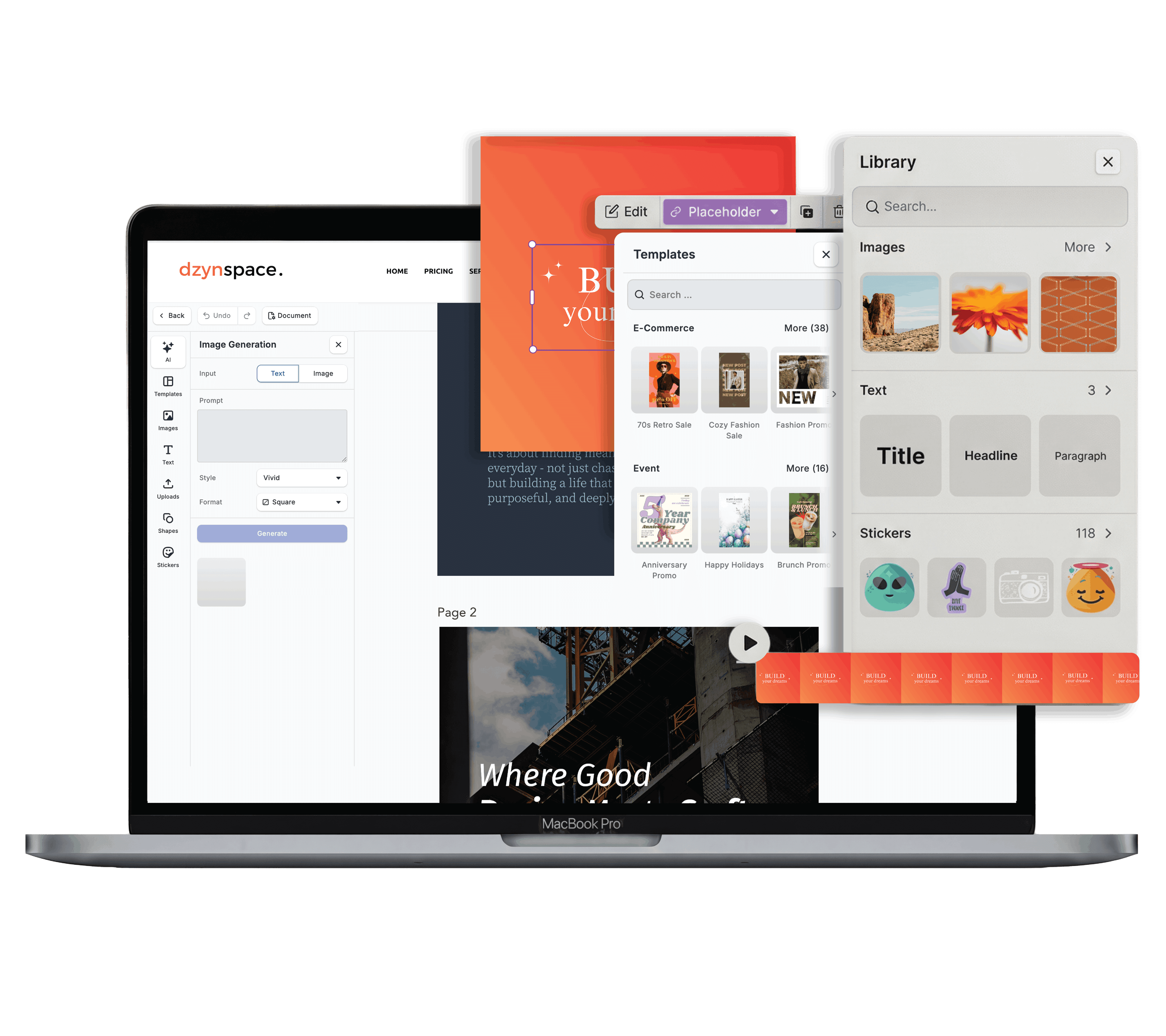
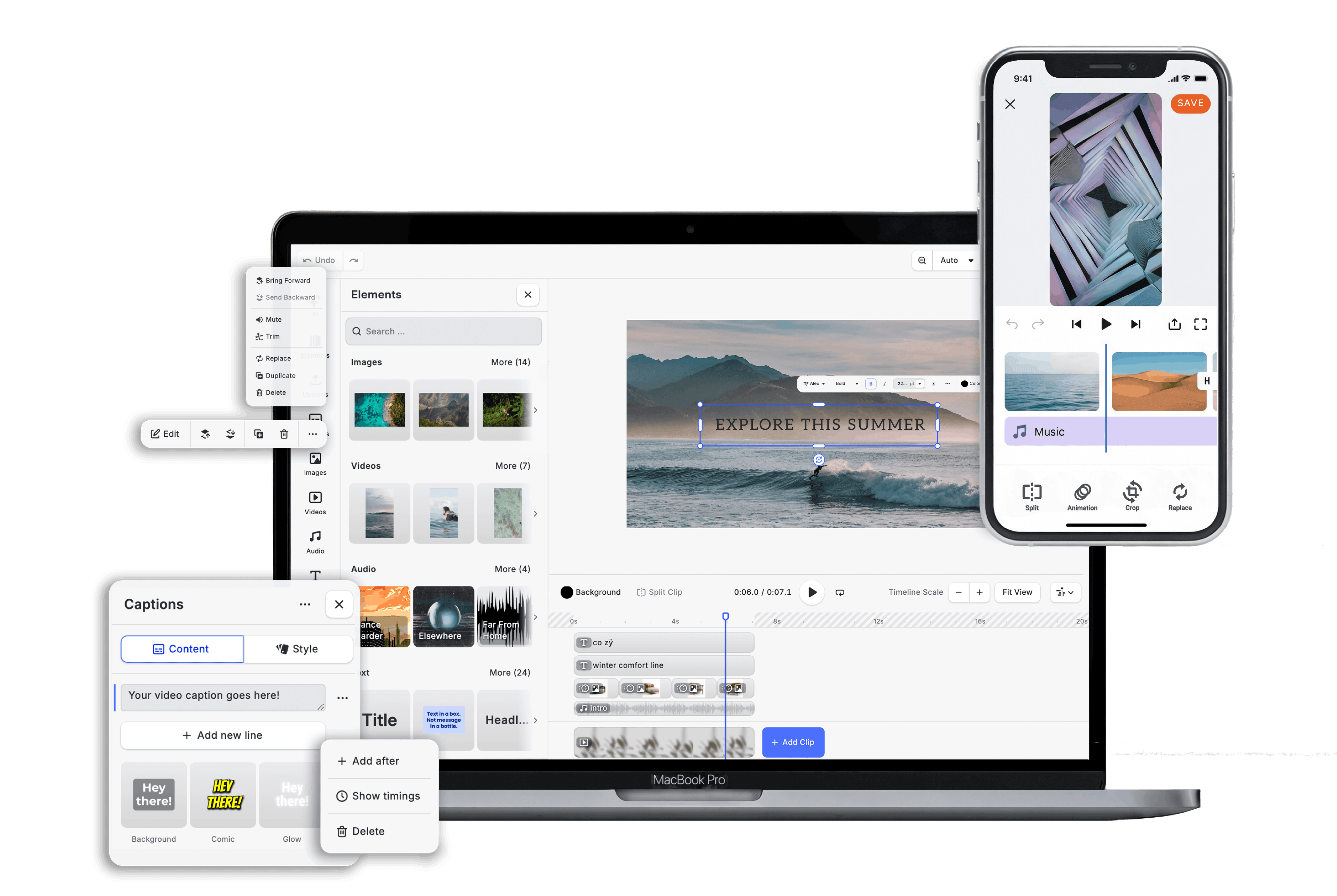
How Dzyn Space Takes Away the Export Guesswork
You don't need to memorise technical file specs to publish great content. Dzyn Space handles file conversions for you automatically:
- Automatic Format Recommendations: When you click export, Dzyn Space suggests the ideal file format based on your canvas layout (e.g., suggesting a PNG for transparent logos or a PDF for print files).
- One-Click Transparent PNG Downloads: Isolate product photos or company logos using the built-in Background Remover, then export them instantly as transparent PNGs.
- Print-Ready PDF Presets: Export high-resolution PDFs complete with professional crop marks and bleeds, ready to forward straight to your local print supplier.
Frequently Asked Questions
Why does my PNG logo have a white box behind it when I upload it?
This happens if the logo was accidentally saved as a JPG or if the original PNG file had a solid white background layer saved inside it. Ensure you export your logo from Dzyn Space with the "Transparent Background" setting turned on.
Will saving a low-quality JPG as a PNG make it look sharper?
No. Saving a low-quality JPG as a PNG simply locks the existing pixelation into a larger file. Always start your design process with high-resolution source images.
What file size is too big for a website photo?
To keep your website loading quickly, aim to keep website JPG photos under 200 KB. Large PNG images can easily swell over 2 MB, which harms your site performance and mobile page speeds.
Can I convert a PDF back into a JPG or PNG?
Yes. You can import PDF documents or vector graphics into Dzyn Space and re-export individual pages as high-resolution PNGs or JPGs for social media sharing.